
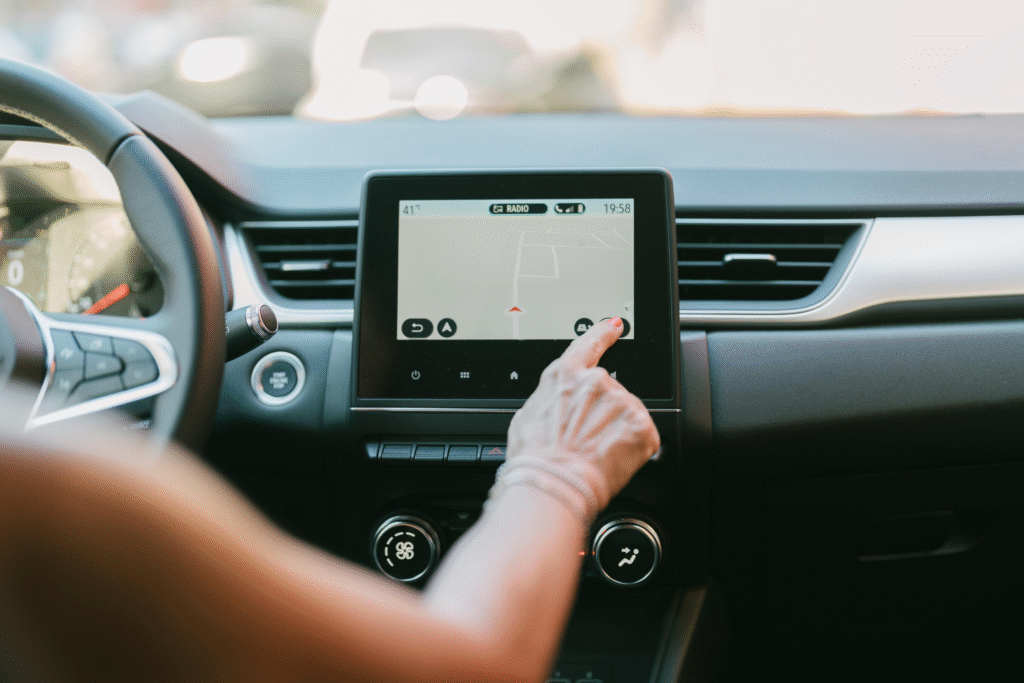
If your Mitsubishi has a built-in GPS navigation system, keeping it updated is important for getting accurate directions. Many Mitsubishi cars use an SD card to store their navigation maps. This means you can update the navigation by simply changing the Mitsubishi SD card – no special tools or dealer visit required. In this article, we’ll cover everything you need to know about Mitsubishi navigation updates via SD card, including how the process works and what to be aware of.
How to Update Your Mitsubishi Navigation Maps
Updating the maps is straightforward once you have the correct SD card. Here’s a step-by-step overview:
- Get the Right SD Card: Purchase an updated navigation SD card that is compatible with your Mitsubishi’s model, year, and region. You can get these from an authorized dealer or a reputable online retailer that specializes in car navigation updates. Ensure it’s specifically for your MMCS version.
- Remove the Old SD Card: Park the car and turn off the ignition. Locate the current navigation SD card in your vehicle and eject it (push it in gently, then it will pop out).
- Insert the New SD Card: Take the new map SD card and insert it into the slot. Make sure it clicks in securely.
- Turn on the Ignition: Start the car or turn the key to accessory mode to power up the navigation system. The system should detect the new map data automatically. In most cases, it will load the new maps without any additional prompts. (If the system asks for confirmation or an update prompt appears, just accept or confirm it.)
- Wait and Verify: Give the system a minute or two to read the new card. Once it’s loaded, verify that the maps have updated. You can check the map version in the settings or try searching for a new street that didn’t exist before. If it appears, the update was successful.
That’s it – your Mitsubishi’s GPS is now updated with the latest maps. It’s a simple swap process that most owners can do in a few minutes.
Tips and Reminders
- Use the Correct Card: Always use an official or well-sourced SD card that is meant for your car. A wrong card (for example, from a different Mitsubishi model or region) won’t work in your system.
- Keep the Car Powered During Update: It’s best to have the car on (engine running or at least ignition on) when you first load the new maps, to avoid any power loss while the system updates the data.
- Save the Old Card: Hang on to your old map SD card in case you encounter any issues or want a backup. Store it in the case or pouch that the new card came in.
Frequently Asked Questions
How often should I update the navigation maps in my Mitsubishi?
It’s generally recommended to update your maps about once a year. Mitsubishi releases new map updates periodically (usually annually) to include recent road changes and points of interest. Checking for a new SD card update each year will help keep your navigation system as accurate as possible.
Can I install a Mitsubishi map update myself, or do I need a dealer?
You can absolutely do it yourself. As described above, installing a Mitsubishi map update is as easy as swapping the SD cards. You don’t need special equipment or technical expertise. As long as you have the correct SD card for your vehicle, you can update the maps at home. A dealership can do it for you too, but they’ll charge for labor – so doing it yourself saves money.
What if my Mitsubishi doesn’t have an SD card for navigation?
Some newer Mitsubishi models use different systems (for instance, they might use a USB stick for updates or rely on smartphone integration for navigation). If you don’t have an SD card slot for maps, consult your owner’s manual or navigation map updates retailers for the proper update method. For vehicles that use smartphone navigation (Android Auto/Apple CarPlay), you won’t need to update a built-in map at all, since those systems use your phone’s maps.


More Stories
Rev Up Your Knowledge: The Ultimate Info Auto Guide for Every Gearhead
The Hidden Truths Behind Your Car’s Dashboard
Unlocking the Future: The Ultimate Guide to Info Auto Revolution